


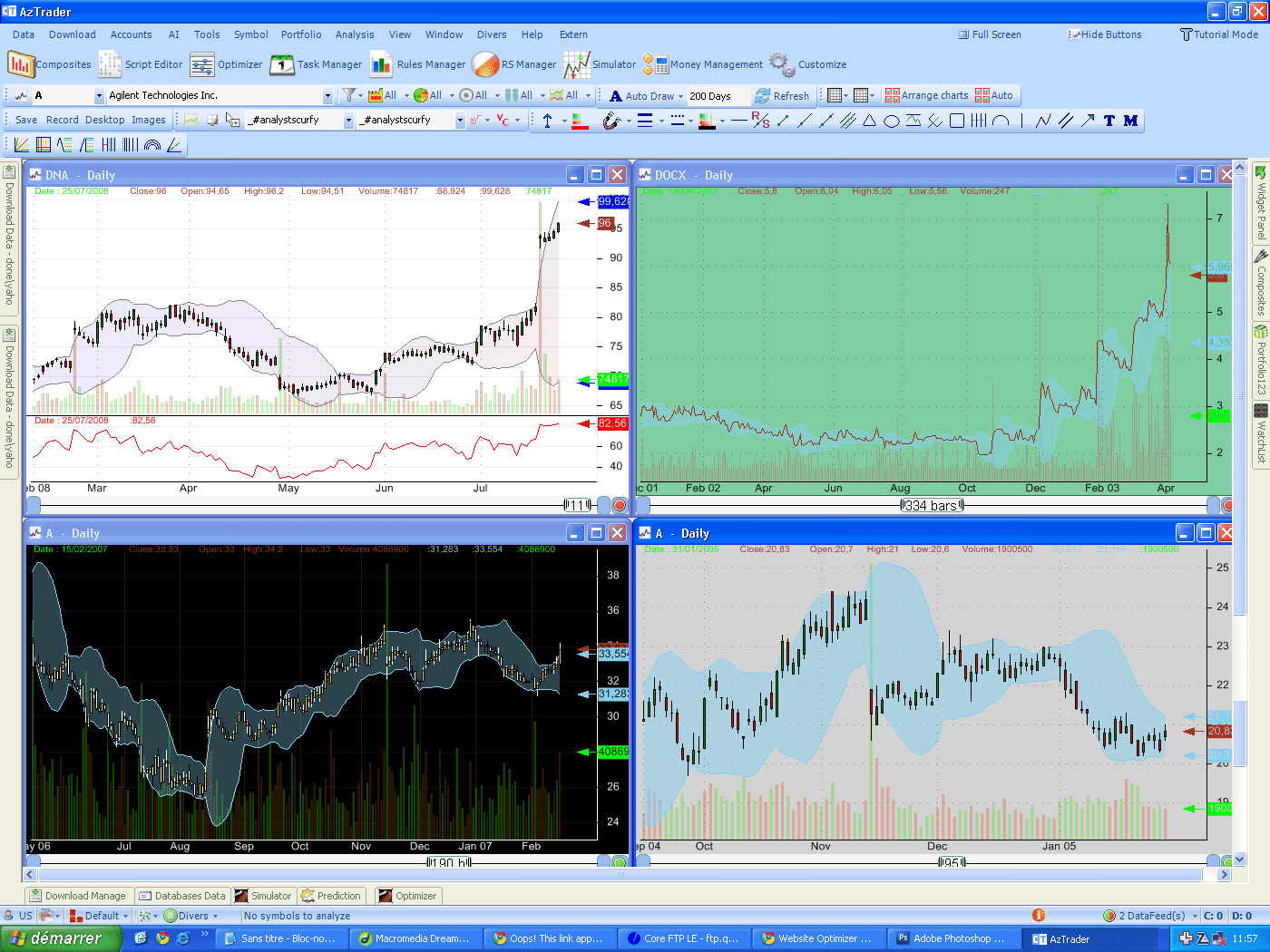
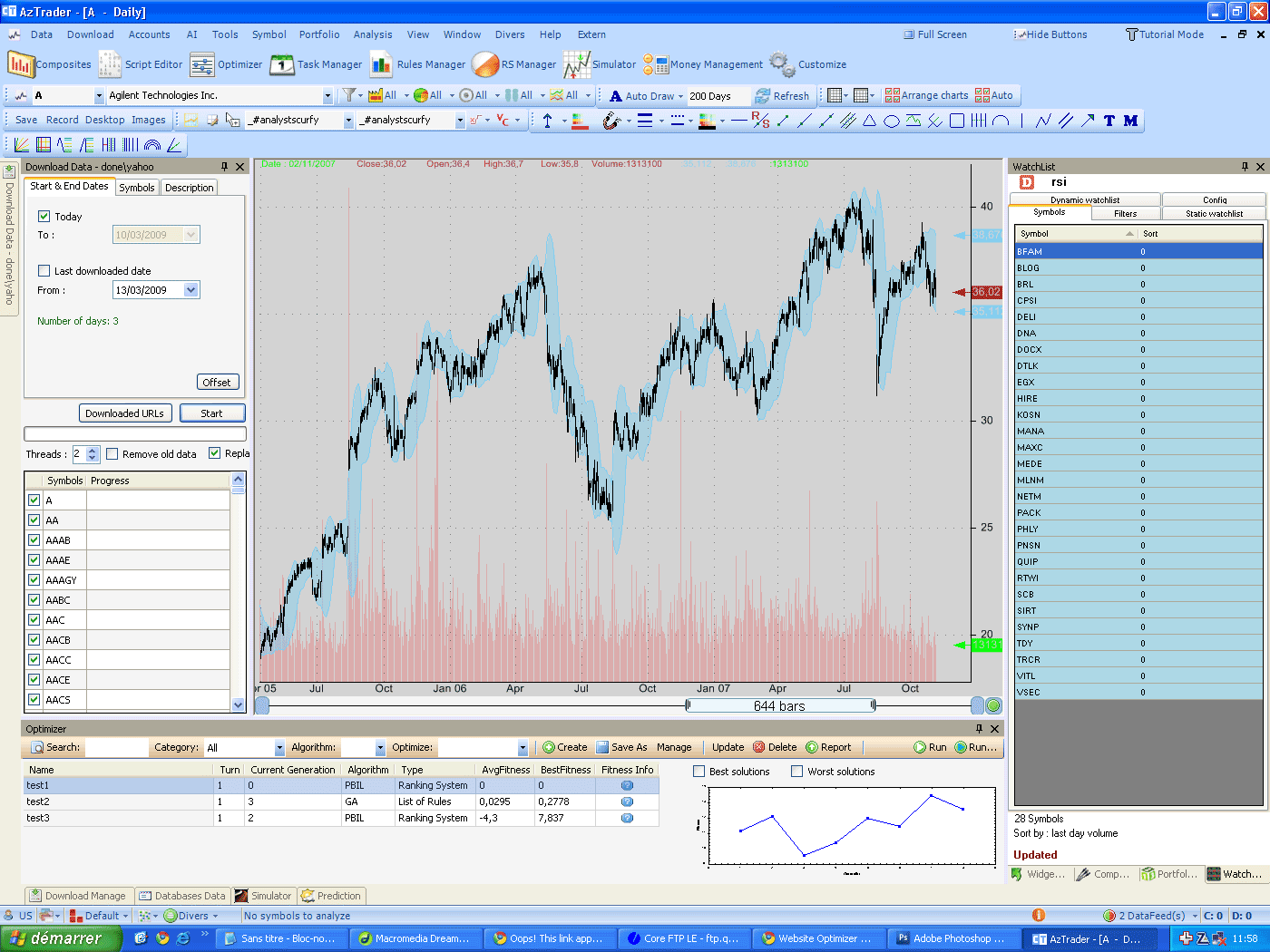
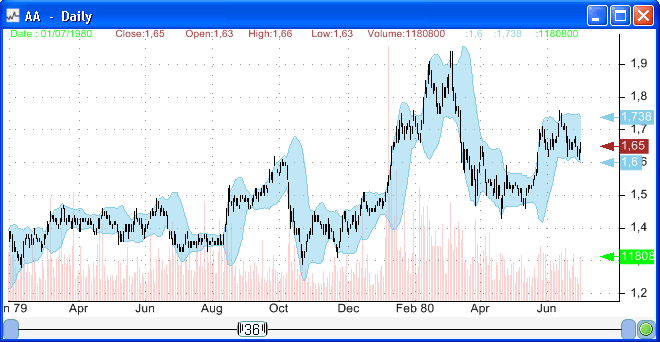
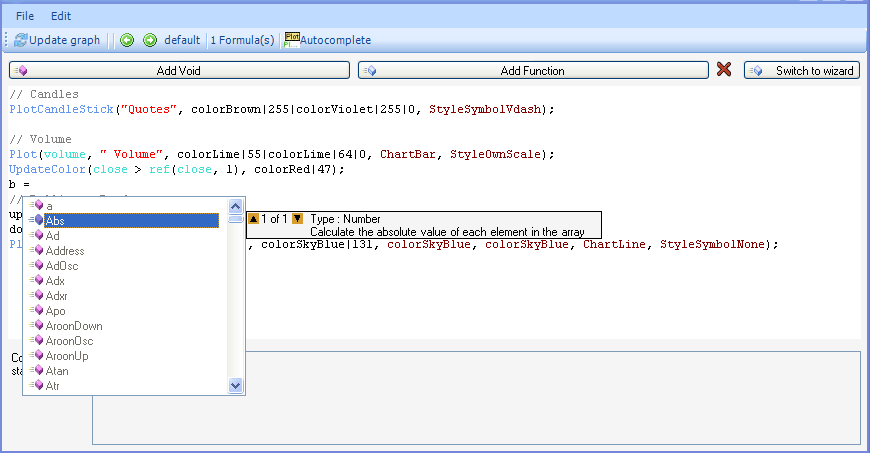
Charts as you know are composed of panes, where each pane contains its own settings and formulas. You can make a pane plot quotes for completely different symbols, it is very easy to do so. The following formula is the answer: c = Ticker('ABCP', close, LastData); o = Ticker('ABCP', open, LastData); h = Ticker('ABCP', high, LastData); l = Ticker('ABCP', low, LastData); PlotCandleStick1(o, h, l, c, 'ABCP', colorRed, StyleSymbolNone); A chart that look like the following one will appears. 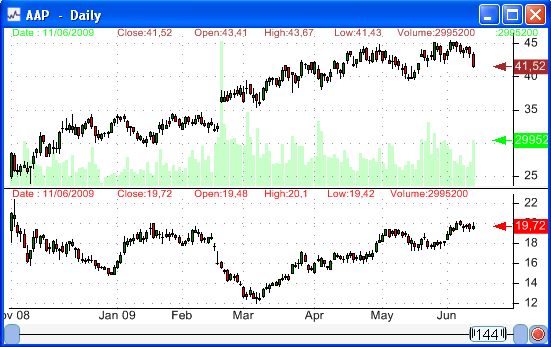 Scripting Now let us say you want to automate a little bit this process so that with one click you create a pane in the selected chart then plot another symbol quotes data. You can do this using the 'Script Editor'. Open it using 'Tools->Script Editor', type in the following formula; we will explain later how it works. var chart : Chart = Charts.GetSelectedChart(); var symbol : String = chart.SymbolName; var formula : System.Text.StringBuilder = new System.Text.StringBuilder(""); formula.AppendLine("c = Ticker('" + symbol + "', close, LastData);"); formula.AppendLine("o = Ticker('" + symbol + "', open, LastData);"); formula.AppendLine("h = Ticker('" + symbol + "', high, LastData);"); formula.AppendLine("l = Ticker('" + symbol + "', low, LastData);"); formula.AppendLine("PlotCandleStick1(o, h, l, c, '" + symbol + "', colorRed, StyleSymbolNone);"); if(chart.Panes.Length == 1) { chart.AddNewPane("Another Symbol", formula, 0); } else { chart.SetFormula(chart.Panes.Length - 1, "Another Symbol", formula); } Now for the explanations, in the first line we get the selected chart object. In the second line we get the symbol name of this chart. We then create the formula, and finally we check how many panes the current chart contains. In the first case where the chart has only one pane, we create another pane and add the previously created formula to it; in the second case, we just update the formula of the last pane. Bookmark Right click on the bookmark panel, select add shortcut, select 'Script' then select the previously created script. Now each time you want to execute this script, just double click on it in the bookmark panel. 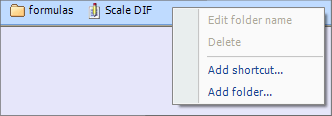 Test To test our script, select a chart and choose a symbol, click on our shortcut to have the chart create another pane with the current symbol quotes plotted. Now select another symbol; the first pane data will change while the second pane will remains the same. With a little understanding on how scripts work, you can create and automate almost everything in your QuantShare application. If you are interested in understanding how to implement advanced scripts then maybe a better understanding of Jscript.Net is necessary. Just do a search with Google; there are plenty of resources available for free.
|

|
|
|
|