Click here to Login

LiveZilla Live Help
LiveZilla Live Help


How to automatically draw Fibonacci Retracement for each new stock?

Updated on 2011-03-01 04:14:01

Share |

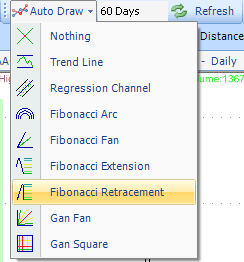
In order to draw the Fibonacci Retracement automatically when a new stock is selected in a chart, click on the Auto-Draw button and select "Fibonacci Retracement".


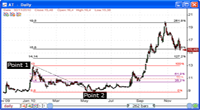
You will notice that the item is drawn at the end of the chart. You can specify the number of days/bars to use in the drawing item calculation by updating the "Number of bars" field.


To stop this drawing process, simply select the Auto-Draw button and click on "Nothing".

Note that auto-draw creates locked items. To unlock the Fibonacci Retracement item, right click on it and uncheck "Lock Position".

Besides Fibonacci Retracement drawing tool, you can also auto-draw the following items:
Trend Line
Regression Channel
Fibonacci Arc
Fibonacci Fan
Fibonacci Extension
Gann Fan
Gann Square


no reviews (Log in)


Other how-to articles


How to use the Fibonacci retracement drawing tool


How to download new quotes when selecting a chart


How to automatically arrange charts?


How to download historical EOD data for penny stocks


How to download earnings calendar data for various stocks


How to plot support and resistance lines automatically


How to display the number of stocks per day for different RSI groups


How to get stocks for a particular index using the global script


How to download EOD quotes for active and valid stocks only


QuantShare
Product
QuantShare
Features
Create an account
Affiliate Program
Support
Contact Us
Trading Forum
How-to Lessons
Manual
Company
About Us
Privacy
Terms of Use

Copyright © 2012 QuantShare.com
Social Media
Follow us on Facebook
Twitter Follow us on Twitter
Google+
Follow us on Google+
RSS Trading Items