Click here to Login


How to download new quotes when selecting a chart

Updated on 2012-03-31 04:28:41

Share |

When enabled, the Auto-Download Quotes feature will automatically download quotes each time you select a new chart or you change the chart's symbol.

Steps:

- Select "Download" then click on "Auto-Download Quotes" to enable this feature
- Repeat the previous step to disable it
- Now, select an existing chart or open a new one
- Type a new symbol for the selected chart

Example:

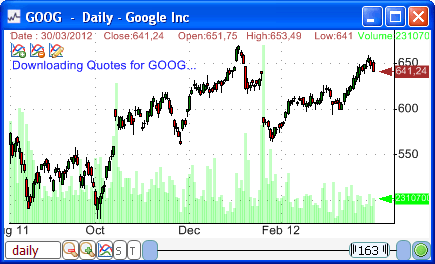
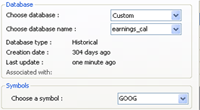
If you select "GOOG" (Google Stock) then you will see "Downloading quotes for GOOG..." at the top of the chart.
When the downloading process is complete, you will see something like "Download Complete (5 new bars)".


Here is how it works:

- The tool first detects the symbol for which it will get data
- It searches for the last downloader that was used to get data for the current symbol
- It uses this downloader to get the most recent quotes
- It updates the chart and tells you how many new bars were downloaded

Notes:

- The auto-download quotes feature works for both end-of-day and intraday charts.
- It will download data for all open charts when the application starts.


no reviews (Log in)


Other how-to articles


How to download EOD quotes for active and valid stocks only


How to download historical quotes of indices


How to download a trading item from the Sharing Server


How to create a log scale chart


How to display notes/commentaries on a chart


How to add a trading indicator to a chart


How to plot two different time frames in the same chart


How to download Portfolio123 data into QuantShare


How to download and use U.S. stocks earnings data


QuantShare
Product
QuantShare
Features
Create an account
Affiliate Program
Support
Contact Us
Trading Forum
How-to Lessons
Manual
Company
About Us
Privacy
Terms of Use

Copyright © 2012 QuantShare.com
Social Media
Follow us on Facebook
Twitter Follow us on Twitter
Google+
Follow us on Google+
RSS Trading Items