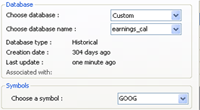
The ASCII Import tool allows you to import one or several text/CSV files into your quotes or custom databases.
Steps:
- Select "Data" then "ASCII Import"
- Add new files by clicking on "Pick files" then selecting one or several files (use CONTROL or SHIFT to select multiple files)
If each file is associated with a unique security symbol then verify that the symbol name is correct for each one of these files. Symbol names can be found in the list control next to "Files" list.
To update a symbol name, select a file, type a new symbol name (next to "Update Symbol name" button) then click on the "Update Symbol name" button.
- Click "Next" to open the settings view
- Separator, text qualifiers, date/time types... options are available under "Settings" panel
- To add new columns, click on "Add Column" button
Example:
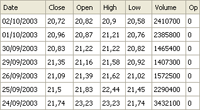
Here is the content of a CSV file: c:\csv\goog.csv
The format is as follow: Date;Close;Open;High;Low;Volume;OpenInterest
Settings:
- Add 7 columns with the following settings:
Quotes -> Date
Quotes -> Close
Quotes -> Open
Quotes -> High
Quotes -> Low
Quotes -> Volume
Quotes -> OpenInt
- Set the "Separator" to ";"
- Set the "Time-frame" to "Daily"
- Set the "Date Type" to "DMY" and the "Date Separator" to "/"
- Alternatively, you can set the "Date Type" to "Custom" and the format to "[D]/[M]/[Y]"
- Click on "Automatically add new symbols" if you want this tool to add new symbols to your database
- Click on "Next" twice and verify that the data was properly parsed
- Click again on "Next" to parse the data and insert it into your historical end-of-day database
Note:
When you add that CSV file (in the first screen), the content is automatically associated with "goog" symbol. For that reason, we do not have to specify a symbol column in this example.
Trading financial instruments, including foreign exchange on margin, carries a high level of risk and is not suitable for all investors. The high degree of leverage can work against you as well as for you. Before deciding to invest in financial instruments or foreign exchange you should carefully consider your investment objectives, level of experience, and risk appetite. The possibility exists that you could sustain a loss of some or all of your initial investment and therefore you should not invest money that you cannot afford to lose. You should be aware of all the risks associated with trading and seek advice from an independent financial advisor if you have any doubts.