How to add a metric in the trading system simulation report
Updated on 2011-10-20 05:42:59
|
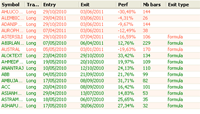
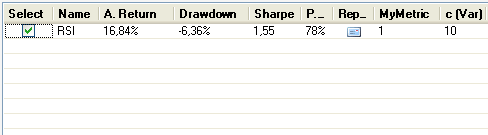
The simulation report appears when you backtest or optimize a trading system. In the top panel, it displays a table, where each row represents a trading system backtest result. The table contains the following columns: Name, Annual return, Maximum drawdown, Sharpe ratio, Percent of winner trades and optimizable fields.
In this post, we will show you how to create a custom metric.
Steps:
- Select "Analysis" then "Simulator"
- Click on "Create a metric" (If the menu is not extended then click on the "+" icon)
- Click on "Help" to get information about the methods and variables available in the metric script tool
- Type the following script:
if(AnnualReturn > 10 && SharpeRatio > 1 && SortinoRatio > 1.5)
{
Fitness = 1;
}
Our metric returns one if the backtested strategy meets the following criteria: Annual return higher than 10%, Sharpe ratio higher than 1 and Sortino ratio higher than 1.5
- Click on "Save Formula", type a name for the metric (Example: MyMetric) then click on "Save Item"
- Close the form then click on "Metrics" in the simulator manager
- Check "MyMetric" then click on "OK"
- Select a trading system then click on "Simulate" or "Optimize"
The report tool will display a new column called "MyMetric".
Note that you can also add a metric by using the money management tool.
|